User Management and Permissions
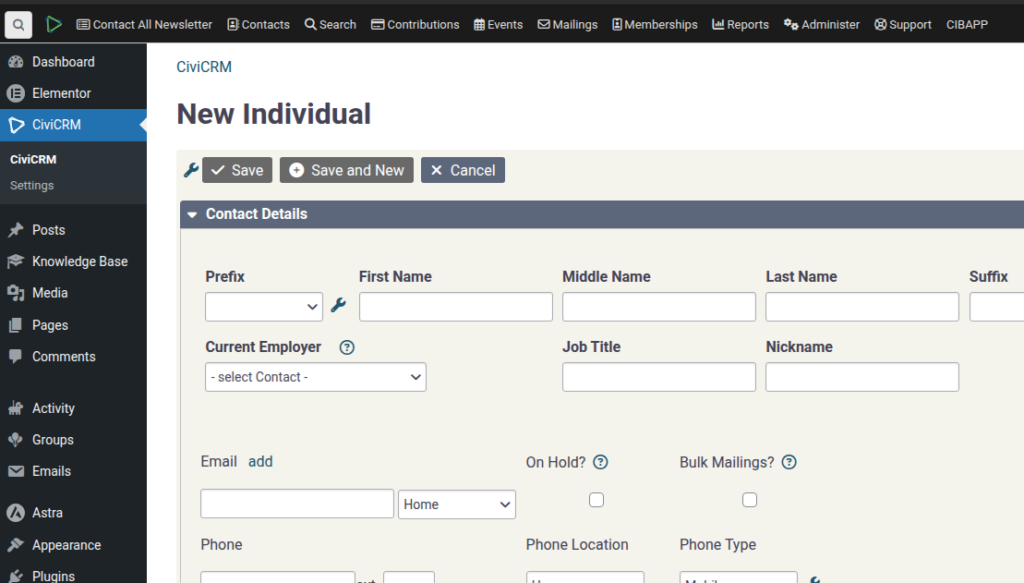
SPEAKER_01 (00:00 – 00:32): I want to introduce you to the user management system. So let’s say we have a new user and we will create… I don’t know, let’s do a test system, it doesn’t really matter. So we will assume that the volunteer has been inducted and everything, and this active flag will mean that they automatically get a user. Under Users,
SPEAKER_01 (00:32 – 00:45): you’ll see that’s the one there. See? They get added as a user. If we go into that, the default is a subscriber. Sometimes you get a volunteer flag.
SPEAKER_01 (00:48 – 01:02): If you wanted that user, let me show you. We’ll log in in a separate window and log in. Let me just reset the password on this. I don’t remember what it was.
SPEAKER_01 (01:04 – 01:20): Ok. So we’ll just do something a bit fancy here. And on the left is our administrator, on the right is our test user. Ok, so we log in.
SPEAKER_01 (01:21 – 01:22): What did I do wrong?
SPEAKER_00 (01:39 – 01:42): No. What have I done wrong?
SPEAKER_01 (01:54 – 02:33): Alright. So, I’m logged in. Now, if we wanted this user to be able to access the database and other things more broadly, we can give them staff access. Okay? So staff access doesn’t give much, but if we refresh, we can see that we’ve got the black bar across here, and we can access CiviCRM. Out of the box, though, they can only access the contacts. So if we find contacts, you’ll see that they have access to all of the contacts.
SPEAKER_01 (02:34 – 03:26): If we would change this user to being a limited CiviCRM access, there are certain things that they’ll still be able to do, and I’ll show you that later. So, yeah, see, so now they can only access themselves, because that’s the only one that they’ve been permitted to do. There’s documentation on how to give access to just certain records for someone. But there’s also some other workflows which we can show you now. So the next part is, instead of giving someone a user management role, what we can do is, down the bottom here,
SPEAKER_01 (03:26 – 04:16): we can add additional roles. So we can say, you know what? I want you to be able to also create and edit your own events. So if we update that and refresh, then they can… and this is CiviVolunteerEvents, okay? So you can create now your own volunteering events. So we say road-siding. So this would be a good role for a… an area captain or a hub captain or something like that. So then they can just set up a road siding for next week. And, you know, something like that.
SPEAKER_01 (04:18 – 04:38): There we go. We’ve created a few. They can also do all of the logging of where the people showed up, all that sort of stuff. So they can do all of that without having to actually be able to see any of these contacts.
SPEAKER_01 (04:40 – 05:25): And then people can still sign up as usual on the website. So that’s one usage of a limited access role. Another one is the ability to run surveys. So surveys are really Nice way of setting up the capabilities to update some data without giving access to your entire database. So let’s set up a quick survey here. I think I’ve done the documentation for this somewhere else, but I’ll just do a quick run through to show how this will work.
SPEAKER_01 (05:26 – 05:37): Activity type survey, and then So over here we should see… So when you conduct a survey…
SPEAKER_01 (05:40 – 05:51): Let’s finish filling it in first. Name an address and finally you need a results…
SPEAKER_01 (05:55 – 05:55): OK
SPEAKER_00 (05:56 – 05:59): or no answer.
SPEAKER_01 (06:04 – 07:01): OK, so because this user doesn’t have any access to this data, they can’t actually reserve any of this. So what you need to do is someone that does have access to the data needs to go in and say and reserve for… Actually, let’s do this in a different way. So under campaigns you can reserve respondents. So we can say we’re going to reserve for this survey for this user, which is… what was it? Zzzz something. This is the one. So we’re going to do a survey of these ten people. You can add a filter and just only do a certain number of them. And then you reserve all of these respondents for this user over
SPEAKER_01 (07:01 – 07:27): here. And then when they go to start the interview, They can now have access to, for example, call these people up and fill in some extra details and say OK and record a response. See, so that’s a great way of reducing the amount of data that volunteers can access.
SPEAKER_01 (07:29 – 07:49): So you could probably use this For other features, you could probably do this for a call flute workflows, you could use this for phone banking, data cleansing, there’s probably a bunch of other use cases that you could do.
SPEAKER_01 (07:52 – 08:10): So back to our user management, let me just run through real quick what What features are available? So the roles that you can add. So this would be more for standard staff.
SPEAKER_01 (08:13 – 08:54): Where’s my roles gone? Other roles. Here we go. So being able to edit the shop, the WooCommerce, extra admin things that you probably don’t need normal staff members to have. Being able to edit the users, certain editing reports, surveys and campaigns, that’s what we just showed, sending mass emails and SMSs, managing events, managing contributions and doing batch contribution things and all sorts of stuff like that.
SPEAKER_01 (08:56 – 09:12): Participant management, that would be like tracking Like just filling in whether people attended an event. Not that far as changing. Hope that helps.