How Can We Help?
Hubs (and SmartGroups)
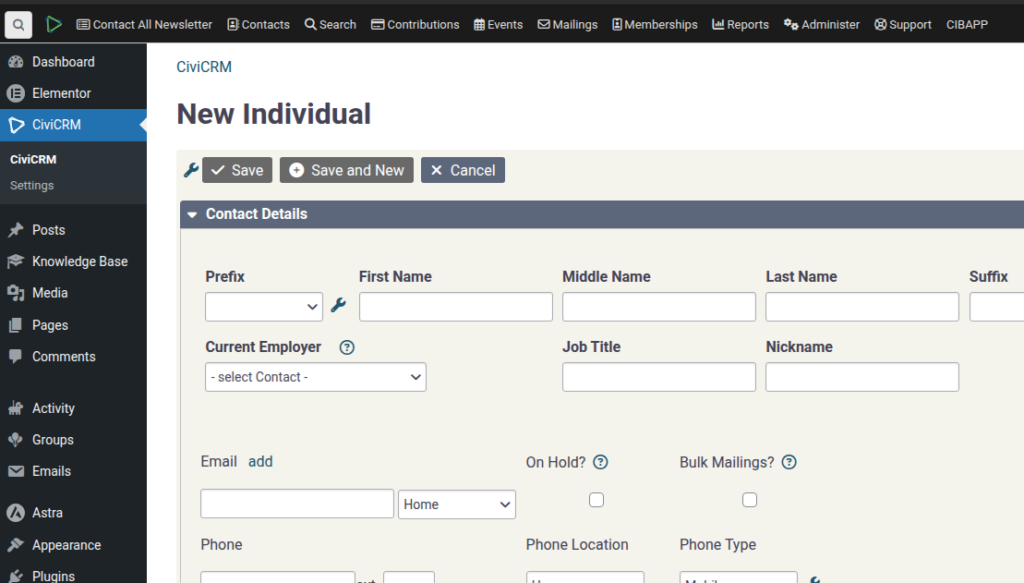
SPEAKER_00 (00:02 – 00:34): We’re going to do a quick demo on how to create new hubs in Civi. So we’re going to, under Contacts, we’re going to do a new hub organization called Southside, and there’s this smart group that will automatically add the group to the hubs, but To speed things up you can have it yourself.
SPEAKER_00 (00:36 – 00:58): So the next step is to actually send an email to this. You should create what’s called a smart group. So to do that we’re going to create a search kit. So I’m going to New Search and we’re looking for a required relationship.
SPEAKER_00 (01:04 – 01:29): Projects Relationship and search for Contact ID here and then we’re going to search for Southside and do the search. There’s none in there at the moment.
SPEAKER_00 (01:32 – 01:46): Let me just quickly Let’s go into here quickly and induct this user. I’ll just do a volunteer quick and then volunteer induction. Add them to the Southside group.
SPEAKER_00 (01:49 – 02:12): Okay. And back here, then we can do a search. They come up. Probably you might want to do a few other things like contact So make sure that the contact is a volunteer in case you mark them as not a volunteer.
SPEAKER_00 (02:15 – 02:31): Possibly a few other things like this related ones. You can actually disable a relationship.
SPEAKER_00 (02:40 – 03:07): Do something like that. Make sure it’s the contact that is a volunteer. You know what? Did I actually mark that person as a volunteer? No, I did not.
SPEAKER_00 (03:09 – 03:35): When I was inducting them, I didn’t do that correctly. So I guess that’s my mistake for setting it up wrong, for not inducting them correctly. But I guess that’s something you have to decide on based on what your workflow is. Next step is to create, under Add here, create a smart group. We’ll call that the Southside group.
SPEAKER_00 (03:36 – 03:47): We’re going to make a mailing list and name this the Southside Smart Group and save that.
SPEAKER_00 (03:48 – 04:07): If you go and create an email, you should be able to choose the recipients as the Southside group with one recipient. and you can email and if you set up SMSs you can SMS that group
SPEAKER_00 (00:36 – 00:58): So the next step is to actually send an email to this. You should create what’s called a smart group. So to do that we’re going to create a search kit. So I’m going to New Search and we’re looking for a required relationship.
SPEAKER_00 (01:04 – 01:29): Projects Relationship and search for Contact ID here and then we’re going to search for Southside and do the search. There’s none in there at the moment.
SPEAKER_00 (01:32 – 01:46): Let me just quickly Let’s go into here quickly and induct this user. I’ll just do a volunteer quick and then volunteer induction. Add them to the Southside group.
SPEAKER_00 (01:49 – 02:12): Okay. And back here, then we can do a search. They come up. Probably you might want to do a few other things like contact So make sure that the contact is a volunteer in case you mark them as not a volunteer.
SPEAKER_00 (02:15 – 02:31): Possibly a few other things like this related ones. You can actually disable a relationship.
SPEAKER_00 (02:40 – 03:07): Do something like that. Make sure it’s the contact that is a volunteer. You know what? Did I actually mark that person as a volunteer? No, I did not.
SPEAKER_00 (03:09 – 03:35): When I was inducting them, I didn’t do that correctly. So I guess that’s my mistake for setting it up wrong, for not inducting them correctly. But I guess that’s something you have to decide on based on what your workflow is. Next step is to create, under Add here, create a smart group. We’ll call that the Southside group.
SPEAKER_00 (03:36 – 03:47): We’re going to make a mailing list and name this the Southside Smart Group and save that.
SPEAKER_00 (03:48 – 04:07): If you go and create an email, you should be able to choose the recipients as the Southside group with one recipient. and you can email and if you set up SMSs you can SMS that group