Hub Managers
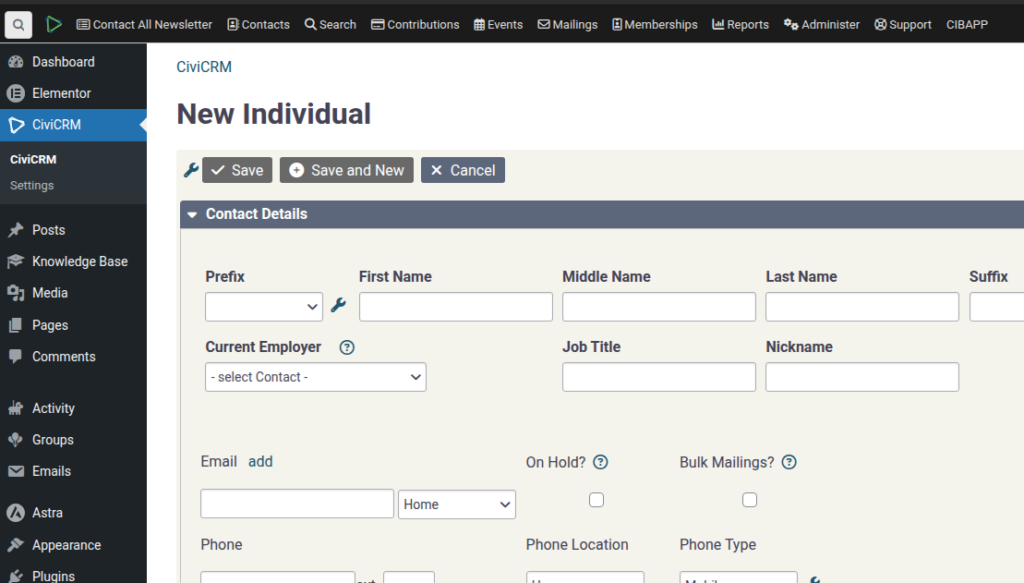
SPEAKER_00 (00:01 – 00:15): I want to introduce you to the concept of a hub manager in CRB. So what we need is a few hubs, so you can create a new hub. So we’ve got created two.
SPEAKER_00 (00:17 – 00:39): There’s an important step in here that the group for this hub must be part of this Hubs group. It’s a smart group. Smart groups are only recalculated about every hour. So when you create the hub, you can push it through or just wait an hour.
SPEAKER_00 (00:40 – 01:05): Okay, so we have those two hubs and now let’s go ahead and create a new hub manager. The next step is we’re going to onboard them just like a normal volunteer, so let’s assign them to the north hub.
SPEAKER_00 (01:07 – 01:21): Let me do a few things here. This is my go-to test email. Alright, we’re all set up.
SPEAKER_00 (01:23 – 01:34): Just so that I can log in, I’m just going to edit. That’s the new user that just got created. I’m just going to set the password to make it easy, if possible, for me to log in.
SPEAKER_00 (01:40 – 01:57): Back to that contact. I’m going to log in as that person now. We’ve created a new window here that’s not logged in yet.
SPEAKER_00 (02:00 – 02:21): We can see that they’ve got the volunteering. There’s nothing special at this stage. The next thing we’re going to do is go into the All Users role. This is a bit of a manual step, just because it’s not a very common thing that needs to be done. We haven’t automated it at all. So we edit this user.
SPEAKER_00 (02:23 – 03:02): And you need to go down to the roles here and search for hub manager and assign them to that. OK, I’m sorry. There’s one more step. So the role of a hub manager in this case is to be able to manage their own volunteer events. So under volunteers, we We can create a new volunteer project, so hub managers door-knocking, let’s say.
SPEAKER_00 (03:05 – 03:48): And because they work on the north side, we’re just going to set the beneficiary to north, and the owner should be the hub manager, so that they can actually manage it. We don’t need to fill anything in. Back to our logged-in user, we refresh and we should have a new menu item called Edit Volunteer Opportunities. If you click on that, this user has now access to this one volunteer project. They won’t be able to see all of them, only the ones that they’re responsible for. So they can define volunteer opportunities.
SPEAKER_00 (03:49 – 04:02): So you can say, okay, we’re doing door-knocking. Set shift on this coming Saturday at 12pm for 60 minutes.
SPEAKER_00 (04:06 – 04:30): Done. Let’s just do that. They can add more later. If we go back to the site, then people will be able to go Click on My Hub and search for volunteer opportunities in the north.
SPEAKER_00 (04:31 – 04:44): If I click Search, I’ll see that Hub manages door knocking. They can search for on the south side as well. I haven’t set any up, but that would be the normal.
SPEAKER_00 (04:48 – 05:02): The flow is that they can click…oops, I’ll smack that a bit bigger. Click Sign Up and then that would be signed up. So that’s pretty much it.
SPEAKER_00 (05:05 – 05:16): I guess the last thing is that you could also ask your volunteer manager to go in to this and log any hours.
SPEAKER_00 (05:18 – 06:11): The fact that they showed up for 45 minutes The reason that that’s kind of important is we use that to track the contacts’ activity. So just now that contact has been marked as active if they weren’t already and also at 17 times there has been, like they’ve become They were active on the date that that event was marked as completed. And that way we can keep track of how active our volunteers are. And you can have your hub managers do that. I think it’s quite easy to work with and really useful.