Contact Forms
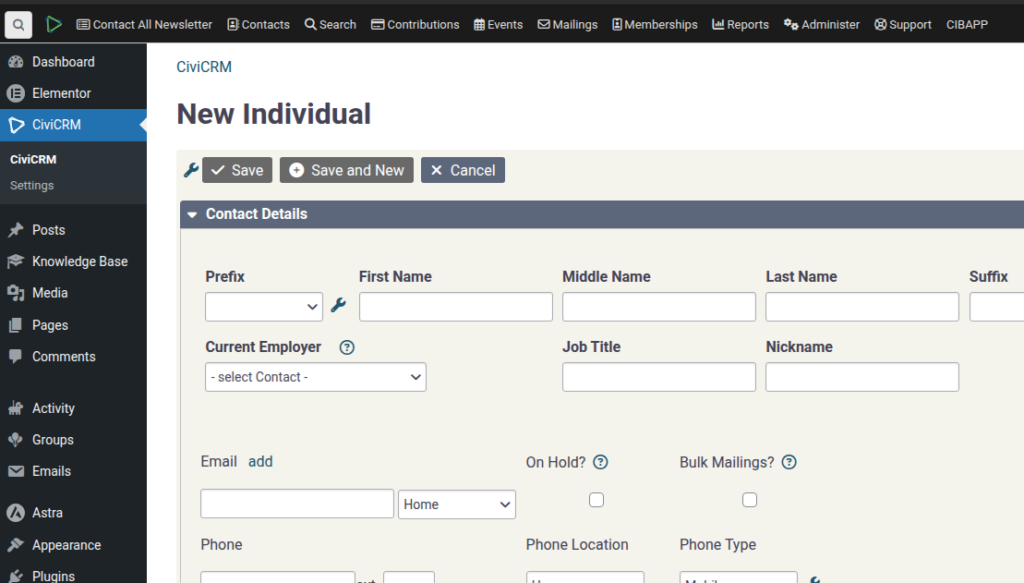
SPEAKER_00 (00:02 – 00:24): Okay, let’s go ahead and create a contact page now. So a contact page would be something like this page, sorry, like a subscribe widget, let’s call it. So here is an example of one down here.
SPEAKER_00 (00:26 – 00:47): So we have a form that we want to fill in. So forms are… This is where CBCRM comes in. So you want to store your contact form in the database. The database is called CBCRM.
SPEAKER_00 (00:50 – 01:15): You can find people in that database by either searching for their name at the top here. one way of doing it. You can also create different types of search options for finding people. So you could create a saved search.
SPEAKER_00 (01:19 – 01:29): You can also, when you’re on, it can be a little confusing, but there’s two different types of menus. One is always available, and one is when you’re in CPCRM.
SPEAKER_00 (01:31 – 01:48): But if you’re missing the top menu, you should click this button here. And there’s the All Contacts, which is an easy way of getting to all of your contacts. All right, so let’s create the contact form.
SPEAKER_00 (01:51 – 02:04): So the way that works is you need to create a form builder form. So I’m just going to copy this new individual one. So we can call that the subscribe form.
SPEAKER_00 (02:05 – 02:25): So if you want it to be public, then the permission, so they’re not going to have the add contacts permission, what you need to do is give them this one here, allow all users.
SPEAKER_00 (02:30 – 03:01): And so, thank you for the confirmation. And what else do we need to do? So that’s the form settings. And under here, this is the data that we’re adding to. So in this case, this is a contact data. So we are allowed to do, we’re only allowed to create contacts. And it’s going to be form-based as opposed to… should.
SPEAKER_00 (03:05 – 03:40): And then you can add any element that you want here, so you can edit the way this form looks. So if you wanted to, for example, add someone’s birth date in here, you would do that. If you need to structure it a bit, I think you can add a container like this, and and you do it again like this and email,
SPEAKER_00 (03:42 – 04:06): sorry, and birth date in the same with the layout on this. A little bit of fiddling required.
SPEAKER_00 (04:11 – 04:30): Then you can add it. Subscribe down the bottom. And if you save that and go back to the form builder, you can refresh, I think.
SPEAKER_00 (04:39 – 04:54): Oh yeah, sorry, one more thing. You need to give it a page route. So, it just needs to be something unique. So click subscribe, for example.
SPEAKER_00 (04:55 – 05:47): That then will make it… Yeah, because you need and you can click on that and you can actually see what the form will look like. And there we go, we’ve got the first name, last name, email and birth date. Okay, so now we need to take this name, so form, subscribe, and I’ve got the to do this so let’s just have a look at the documentation which is in progress at the moment so website forms this is the instructions on how to do it so what we need to do
SPEAKER_00 (05:48 – 06:38): is grab this so this is how this is the embed it’s called a shortcode all right so what we do now is we create a page actually let’s put it on our home page so we’ll edit that home page with Elementor and then we’re going to add a flexbox with two rows and in here we’re going to add a shortcode and we’ll paste that in but it was a form subscribe as you recall and if you apply that in FIPA And on this side we can just add a bit of text, like here for example.
SPEAKER_00 (06:41 – 06:58): Text editor, here we go. And paste that in like that. Okay. Publish this and let’s have a look at it. How does that look? There we go. So we’ve got sign up and we’ve got the form. And then we fill it in.
SPEAKER_00 (07:03 – 07:27): making this up. This is not my birthday. And test.test.com, subscribe, thank you. And now we go to all contacts and we should see that was the test.com and there’s the date of birth and that’s how you add contacts to your database.