How Can We Help?
Adding CIVICRM (Afform) Forms to WordPress
It is not difficult to make beautiful CiviCRM forms:
- We’ve provided out of the box styling
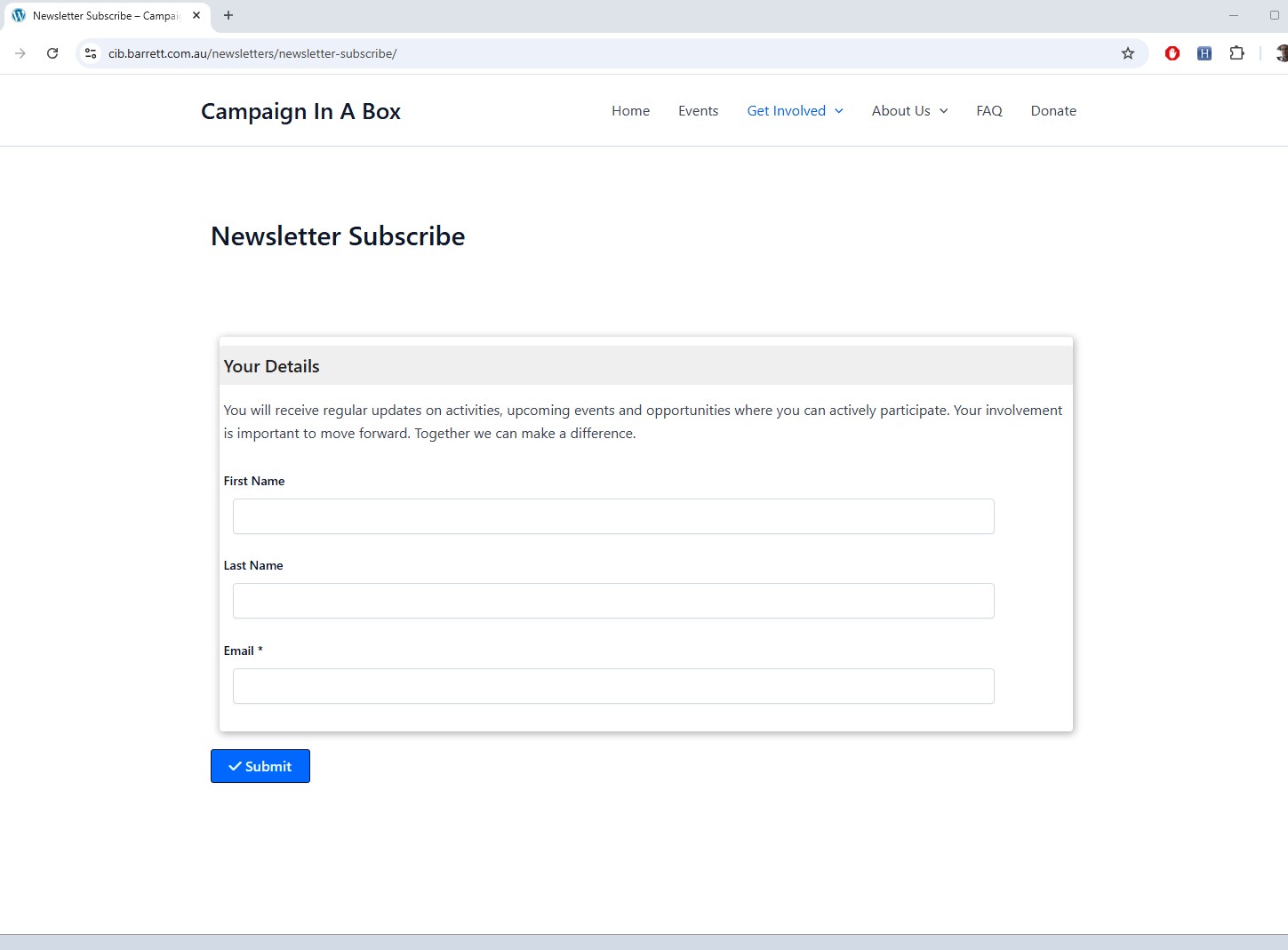
- The form needs to follow a pattern (see the newsletter form example below):
- first outermost form needs to be the FIELDSET
- then for each group of fields (see e.g. personal details)
- container with TITLE, the container style needs to be set to “panel pane”
- inside that container you create another container with the fields (the style sheet will look after these)
- at the end of each FIELD (or seperation of each field) you need a “Text Box” DELETING the text, that makes a space.
Once you save your form it is given a “afform name”, this is name you use to embed the form in any page.
For example here is the form that is default on any CIVICRM install for adding one indivudual:
[civicrm component="afform" name="afformQuickAddIndividual"]
See the documentation on CIVICRM’s wbsite https://docs.civicrm.org/sysadmin/en/latest/integration/wordpress/
- Go to dashboard of your cib based site
- scroll down to Astra and hover over it
- select Customise and click
- select “Additional CSS” and click
- add the code found here into the box supplied
- save
Note in NEWER installs of CIB based websites the CSS might already be loaded as part of the <HEAD> section.
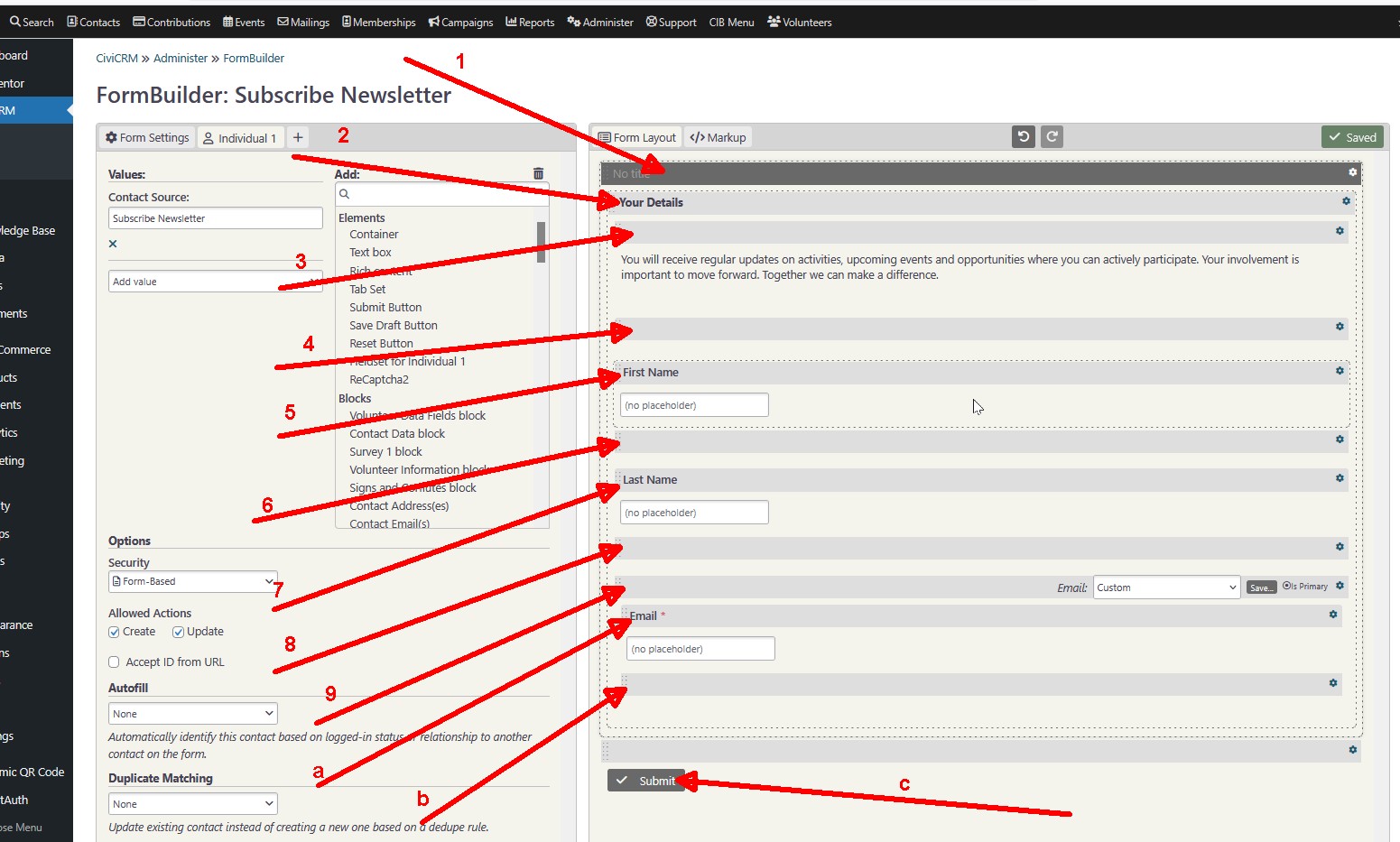
Here is how you achieve that (see image below, again clicking on it will open it in a new tab)
- Outer most frame, this needs to the “fieldset container” of the fields.
- Container, in this case called “Your Details”
This container style needs to be set to “panel pane”. - Text field, some information about (in this case) the newsletter
- SPACER Text box with deleted text, you drag it from the left “Add box”
- “First Name” field, drag it from the left pane.
- SPACER Text box with deleted text, you drag it from the left “Add box”
- “Last Name” field, drag it from the left pane.
- SPACER Text box with deleted text, you drag it from the left “Add box”
- “Email” field, drag it from the left pane.
- Part of the email, make sure you delete items you do not need, like primary
- SPACER Text box with deleted text, you drag it from the left “Add box”
- Submit button, you drag it from the right.